Softbook 26.1: new features
Softbook 26.1 is out. You can now build a program from several courses, set the order of access and award a certificate for the whole path. Subscriptions now include failed payment retries and renewal analytics, with further changes to the certificate editor, rewards and My courses.
Courses: folders, pinning and store search 🗂️
Course folders
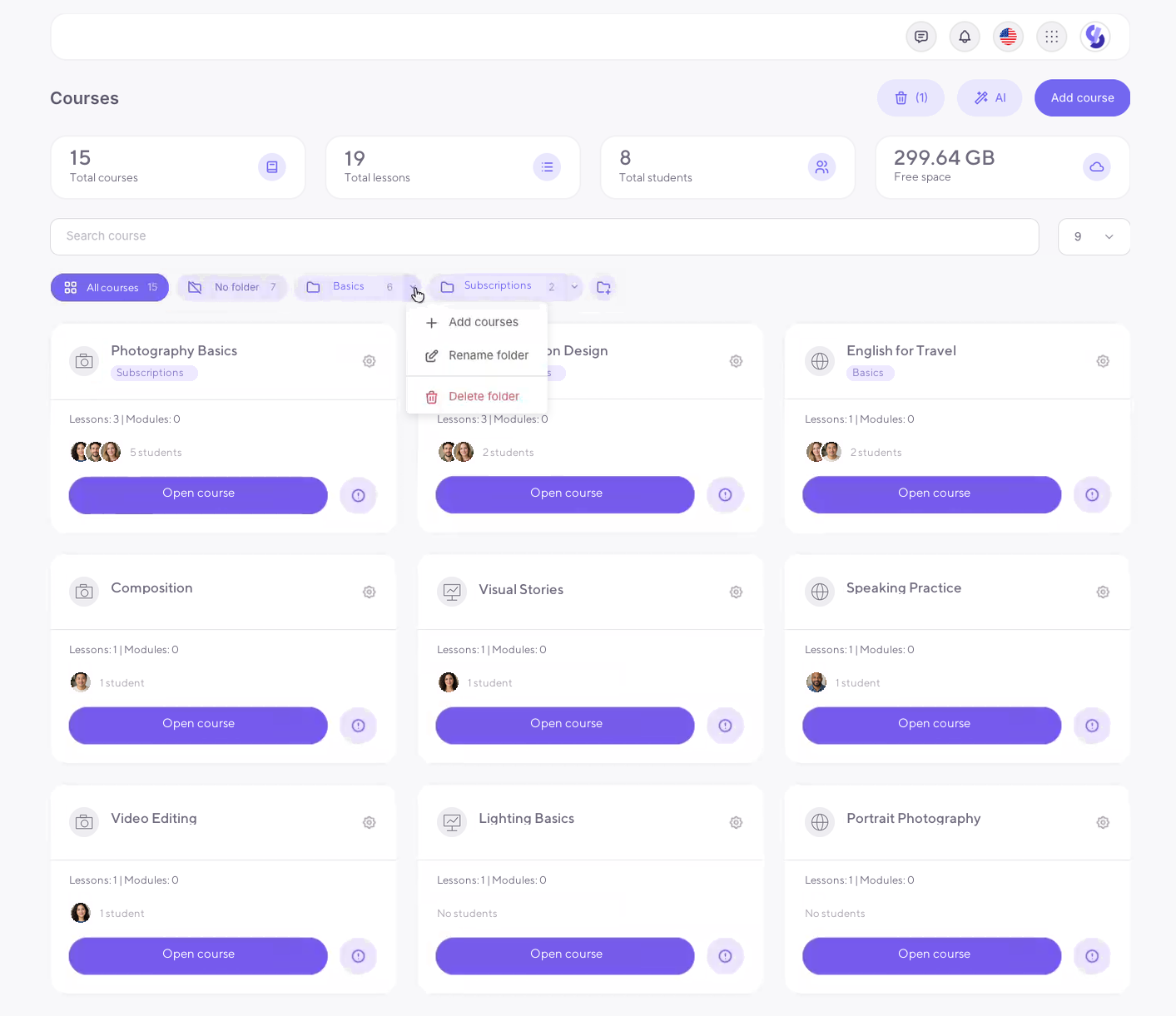
Create a folder with the button next to "All courses". Drag cards into it, or choose Add courses from the folder menu. Click a folder to see its courses. Each card shows its folder label. The same menu lets you rename or delete a folder, and deleting it keeps the courses available under "No folder".
Folders are shared across your team, so if three teachers have one course each in the same folder, all three see the folder with only their own course inside. The student dashboard stays the same.
Pinned courses for students
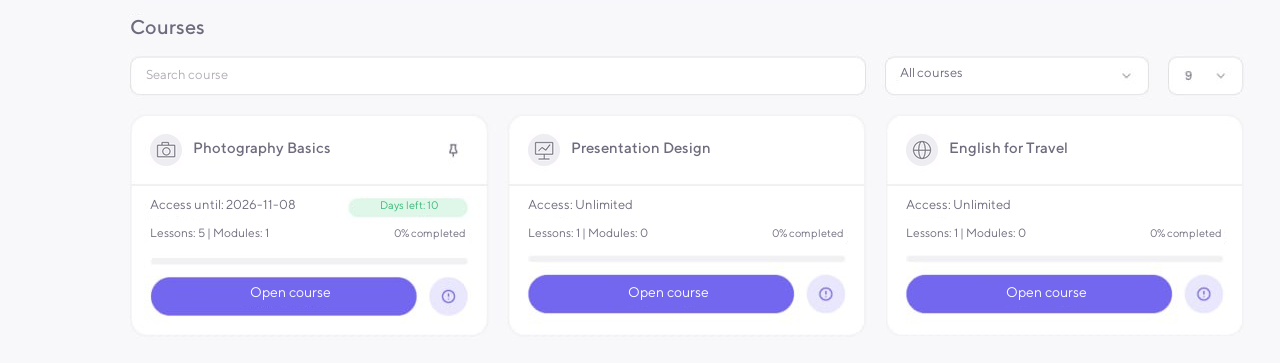
Students can pin a course by clicking the pin icon on its card. Pinned courses come first whenever they open the courses page.
Search and filters in the store
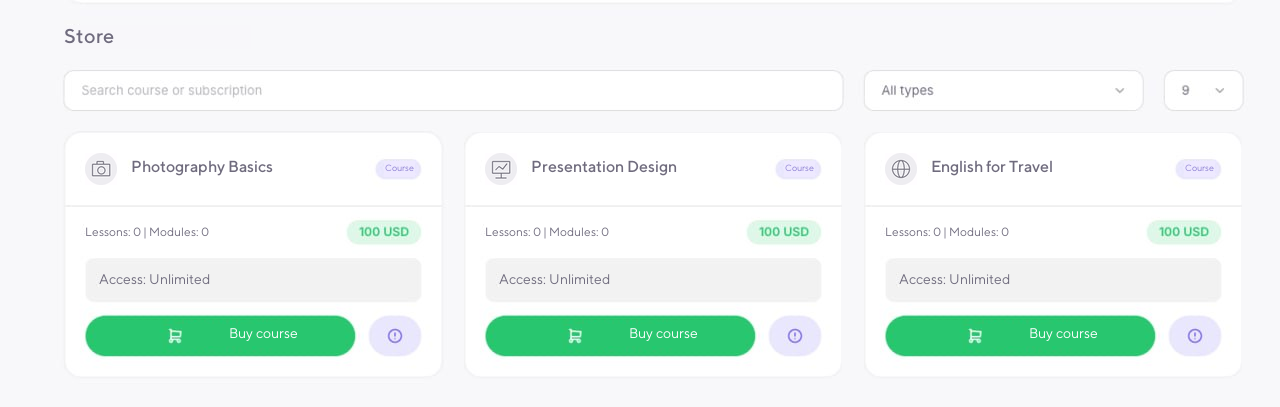
The store now has search and a product type filter. Search for an offer, or filter the list to show courses or subscriptions.
Subscriptions 💳
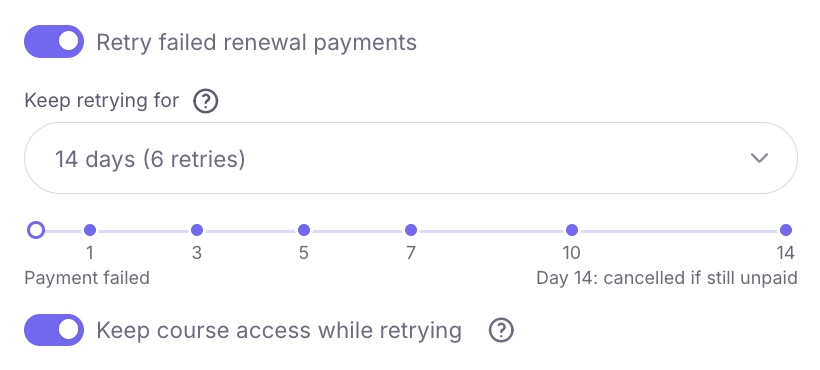
When an automatic payment fails, your school has another option: retry the charge. Softbook LMS will retry the charge on the schedule you choose in the product settings: 3 attempts over 3 days, 4 over 7 days, 6 over 14 days or 8 over 30 days. The schedules take into account both the chance of recovering a payment and the risk of blocks caused by charging too often.
The subscriptions section now has detailed analytics. See active subscribers, MRR, new subscribers and churn, successful renewal rates and revenue for the last 7, 30, 90 or 365 days. Separate figures show subscriptions without auto-renewal, renewals for the week and automatic payments expected over the next 7 days, with their total amount.
Retries have their own results. See the amount and share of payments recovered, subscriptions currently being retried and failed charges.
Choose a day in the upcoming payments section to see which students' subscriptions renew that day. The payment attempt history records every attempted charge.
Learning paths 🧭
Build one program from several courses. Students follow them in order. The new Learning → Learning paths section turns separate courses into a route. The next course opens when the previous one is complete or at a time you set.
Learning paths are available on the Max plan.
The path builder 🗺️
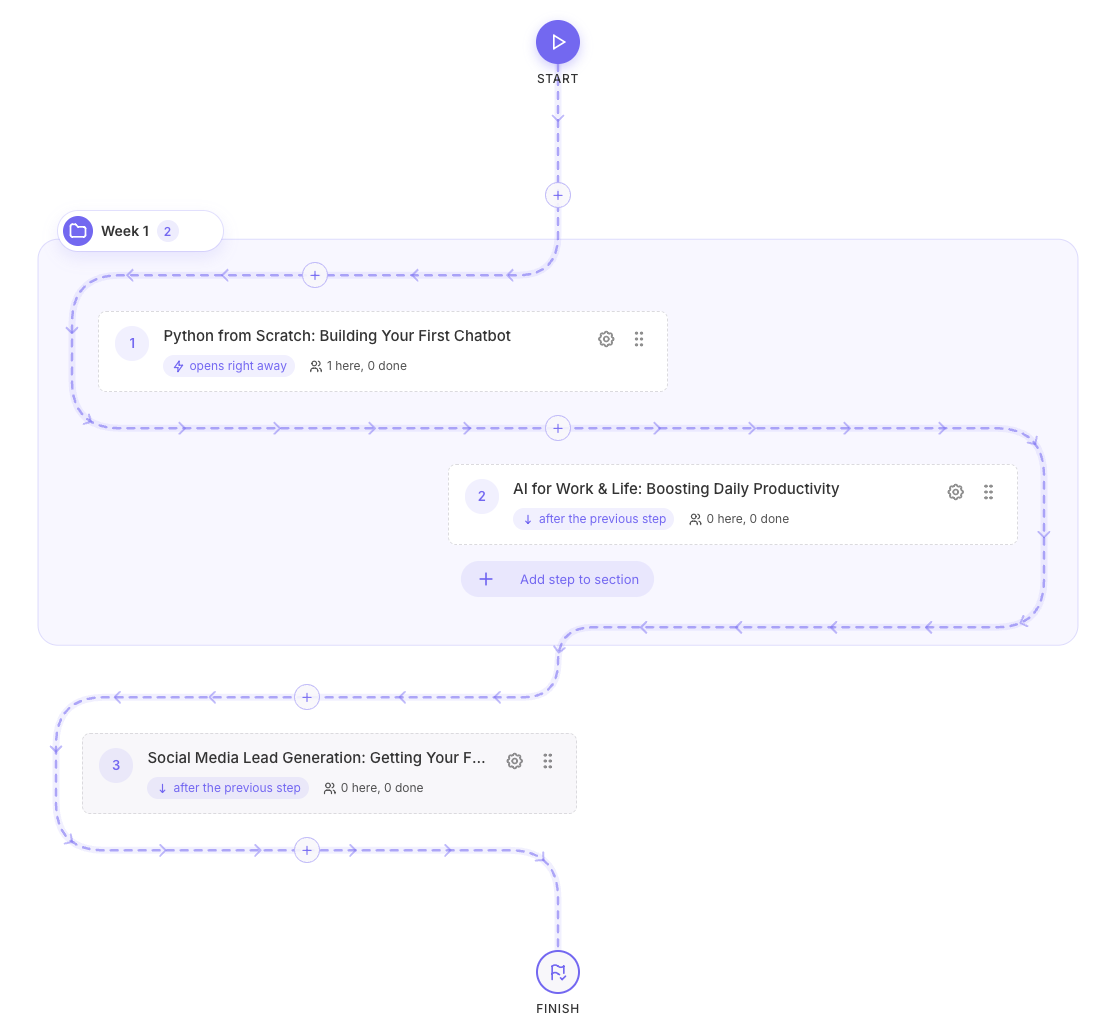
Steps appear on a map of the path. Drag them around, insert a step between any two others or group steps into sections such as Week 1 and Week 2. Settings for each step and the whole path open in a panel on the right, keeping the full route in view.
To make a similar program, copy the path with all its steps.
Set the rules for each step
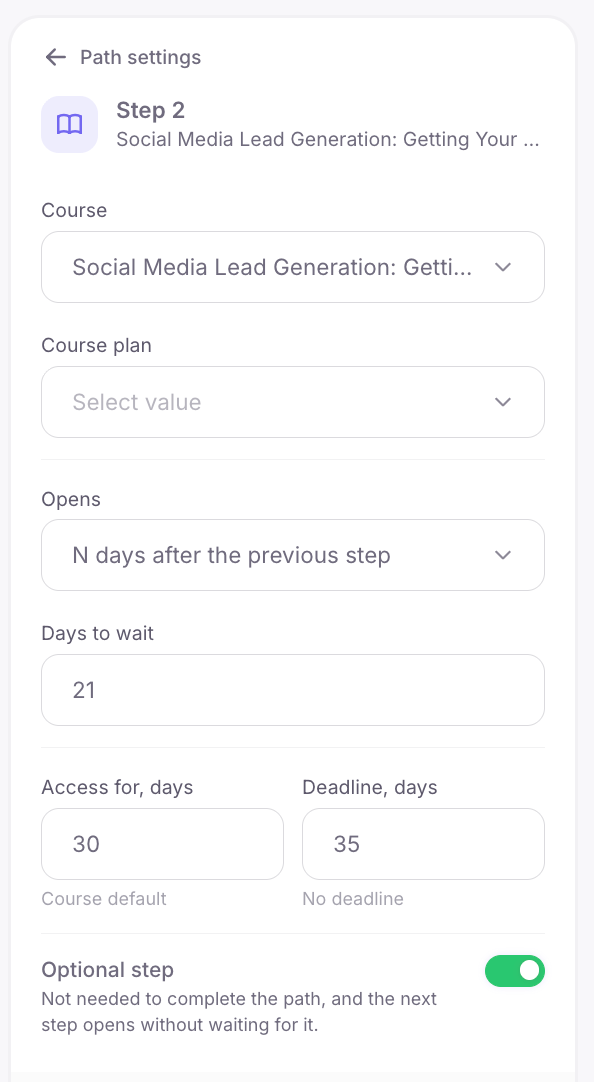
Choose a course and the course plan the student will join for each step. Then decide when the step opens: immediately, after the previous step, a set number of days after it, a set number of days after enrollment in the path, on a specific date or manually when a tutor decides.
You can limit course access to a number of days and set a deadline for completing the step. If a course is optional, mark the step as optional too. It will not be required to complete the path, and the next step will not wait for it.
How students join a path
Enroll students manually from their profiles, in bulk from the student list or directly from the path statistics. Members of selected groups join automatically. Turn on self-enrollment so students can join from their dashboards. Sell paths too. Automations can enroll students in a path.
When the school enrolls a student, they receive an email about access to the path.
Courses open as students progress. A student gets access to a course only when its step opens. A direct link cannot open or start a course that is still locked in the path.
What students see 🎓
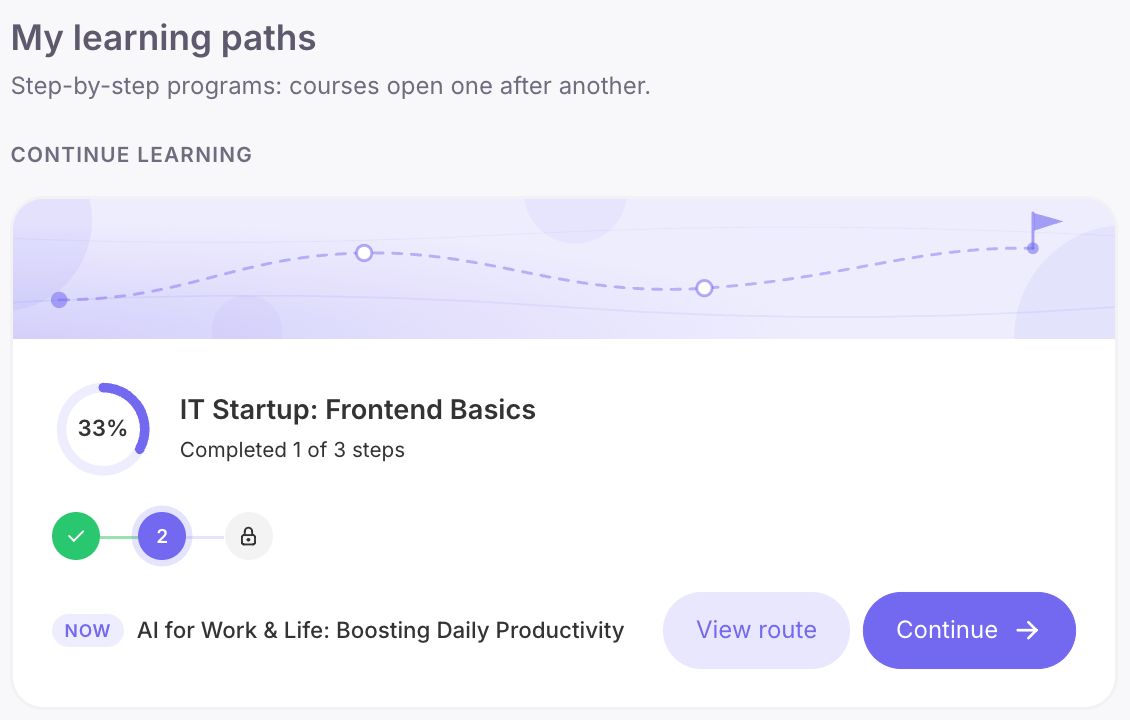
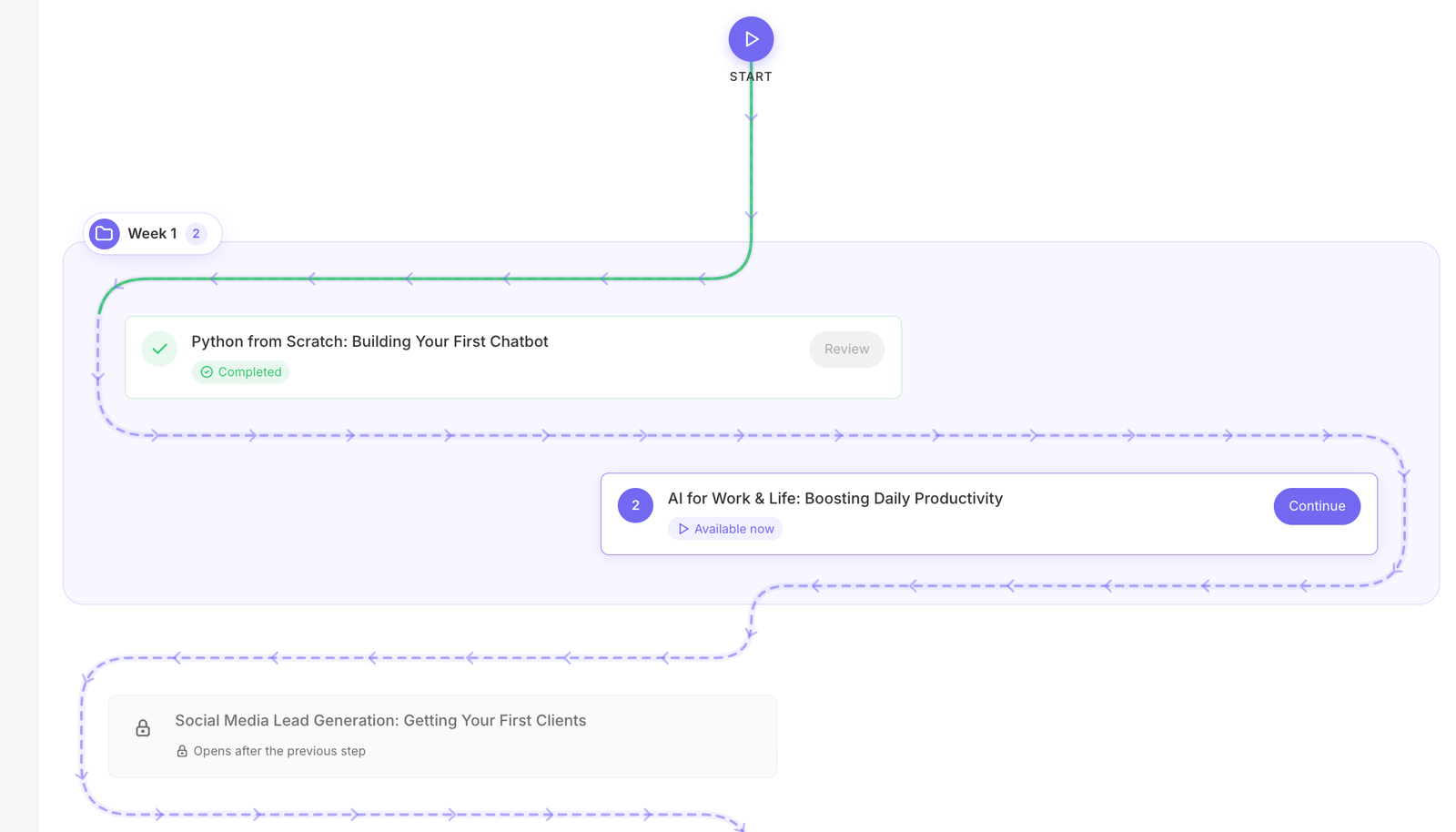
The student dashboard now has a My learning paths section. Cards show progress, the steps in the route, the current course and a Continue button. Open the path page for a map. It marks You are here and shows the part already completed, while paths open for self-enrollment appear in My learning paths with a Join button.
If you enable the option, locked courses from a path will also appear in My courses, with a note explaining when they open. They have a separate Coming soon filter.
On the last lesson, students see a new completion block with their course certificate and the next step in the path. It includes a button to go to the next course or the date when it opens.
Notifications and deadlines ⏰
Students receive updates through the notification bell and Telegram when a step opens, a deadline approaches or is missed, or the path is complete. Your team also hears about missed deadlines so they can send a reminder or offer help.
A certificate for the whole path 📜
With a template selected in the path settings, students receive a certificate automatically after completing all required steps. The certificate editor has new Learning path name and Courses completed variables, and the finished certificate appears in the student's My certificates section.
Sell a learning path 💰
Learning path is a new product type. Sell one path or several together. After payment, the student is enrolled in those paths, and courses open according to each step's rules.
The full path in the student's profile 👤
The student's profile has a Learning paths tab. It shows every path with status, progress and a map. You can manually open any locked step here, whether it requires a tutor to open it or you want to grant early access. You can also remove the student from a path and, if you choose, close access to its courses at the same time. Progress within those courses is preserved.
If a student is removed from a course in an already open step, the step turns red. You can restore access with one button. Removing students from such courses triggers a warning.
In the Courses tab, upcoming courses from a path show their step number and a note explaining when they open.
Path statistics 📊
See how many students are on a path, how many have completed it and where they stop. There is a funnel for each step and a student list with filters.
Automations ⚙️
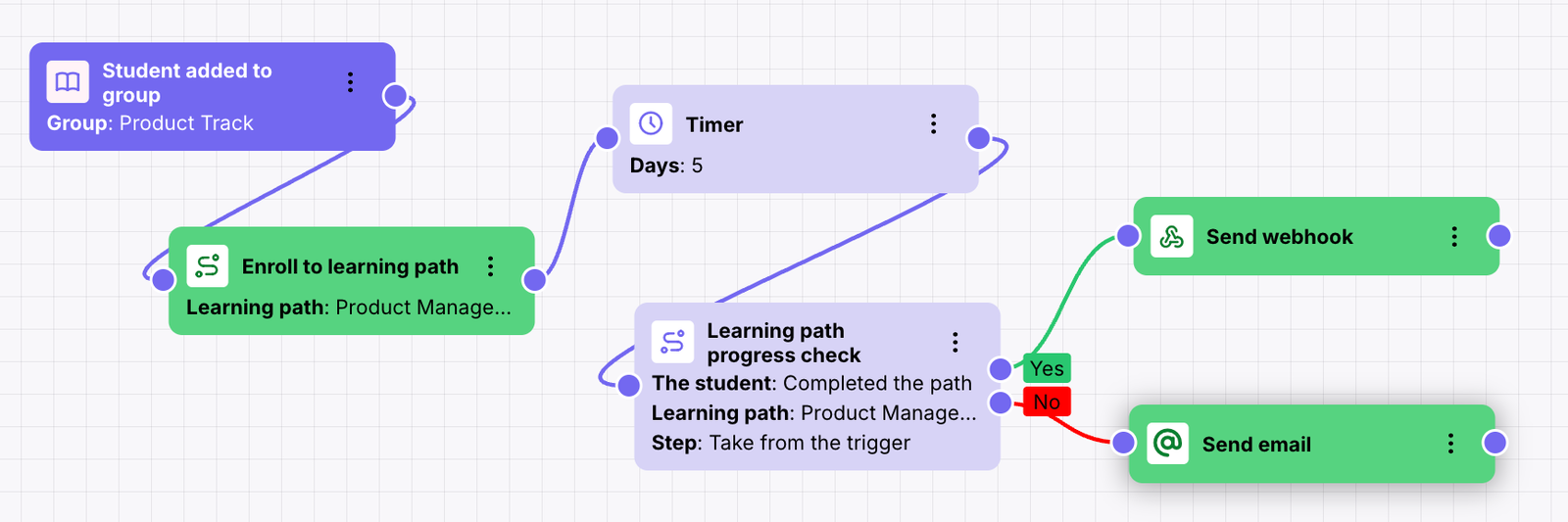
Learning paths now work with automations. Run a scenario when a student joins a path, a step opens, they complete a step, miss a deadline or finish the whole path. A scenario can enroll a student in a path, open a step or remove them from a path. The Learning path progress check condition shows where the student is now.
More path features
Gamification awards points and rewards for starting a path, completing a step and finishing the whole path. Staff permissions control access to paths and bulk actions. Completing a course in the mobile app also moves the student forward on the path.
Certificate editor 🏅
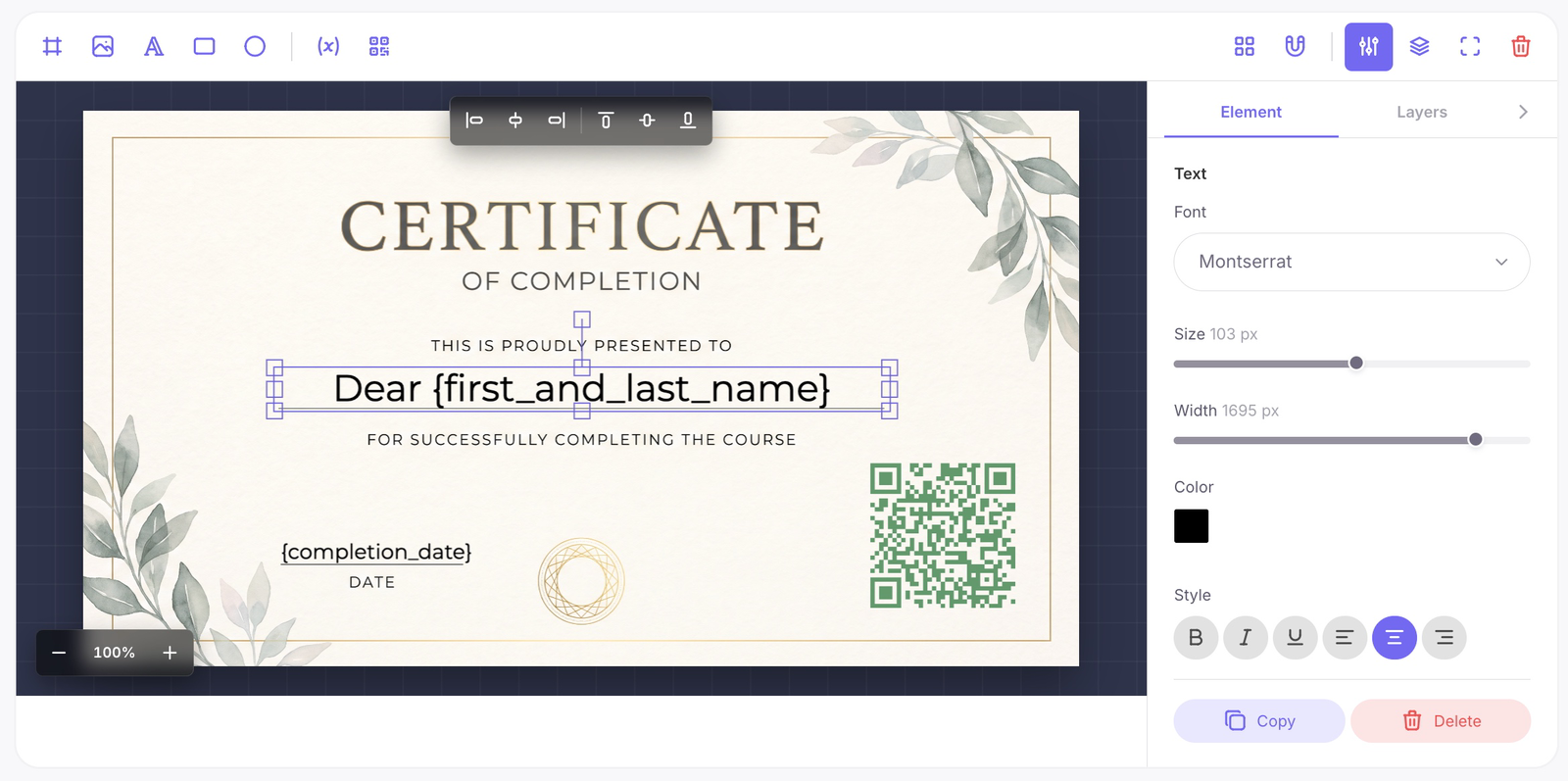
Tools sit on the left: background, image, text, shapes, variables and QR code. On the right are settings for the selected element and a layer list that you can reorder by dragging. The editor page is wider too, giving you a larger view of the certificate.
It is easier to position elements precisely. Turn on the grid and snap to it, align elements in one click, zoom in for detailed work or open the editor in full screen.
Text blocks wrap long lines automatically, and there are 16 fonts to choose from. Match the QR code to your certificate with dot shapes, a color or gradient, and a logo in the center.
Variables now work inside text. You no longer need separate pieces to build a sentence such as "This confirms that First Name Last Name has successfully completed the course…" Write it as one block, and the name and course title will fill in automatically. Learning paths also have Learning path name and Courses completed variables.
Existing certificates continue to work and are issued as before.
Gamification 🏆
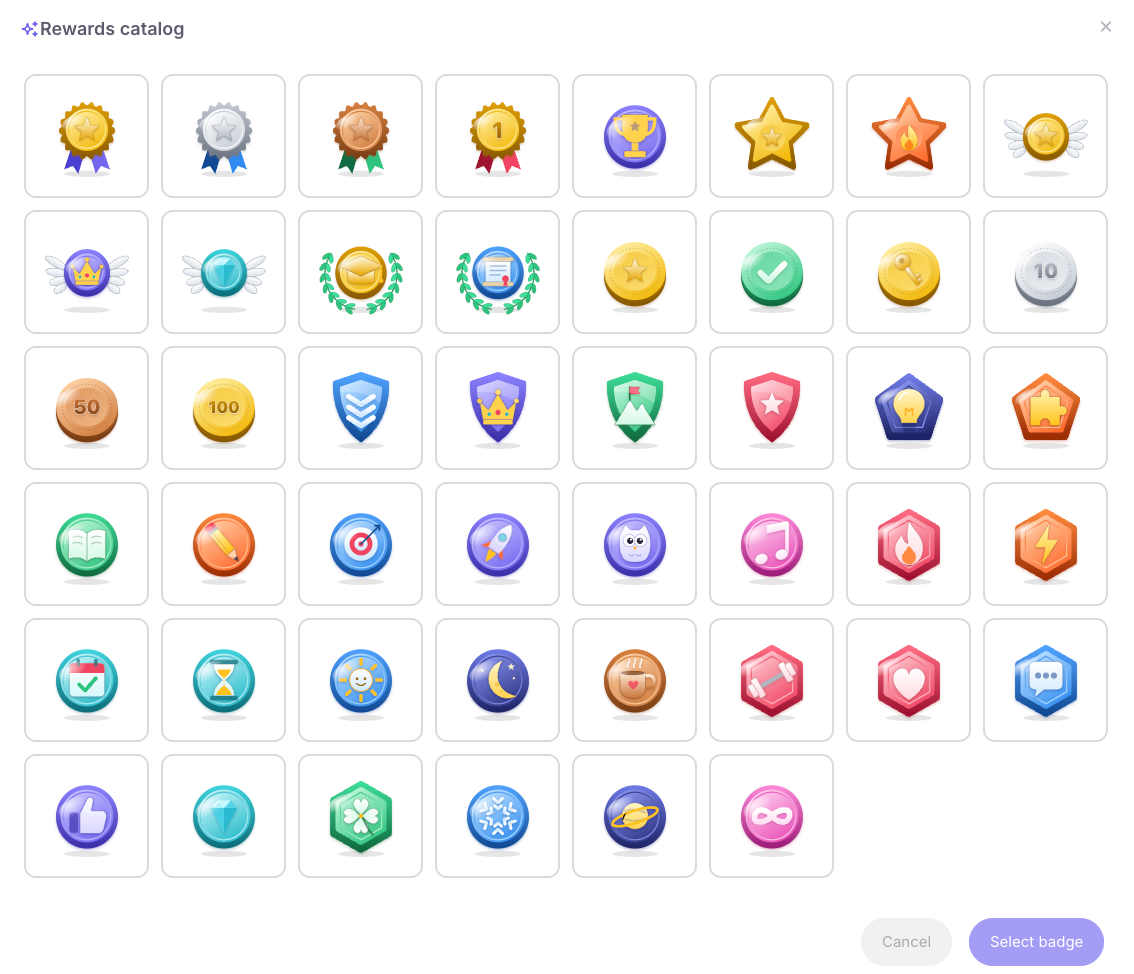
The reward editor now has a catalog of 46 ready-made animated badges. Choose one in a click, without searching for images or asking a designer. You can still upload your own image.
Badges are animated in the student dashboard: they shimmer, glow and send out sparks.
Gamification also works with learning paths. Award points and rewards for starting a path, completing each step and finishing the whole program. Choose a specific path, or apply the rule to any path in your school.
Leaderboard and rewards 👑
The top three students stand on a podium with gold, silver and bronze crowns. The rest of the top 10 follow below. Students can compete in two rankings: rewards and points.
At the top is the student's own card, showing their rank, result and how much they need to reach the next position. If a student has points or rewards but is outside the top 10, they can see their rank at the end of the list.
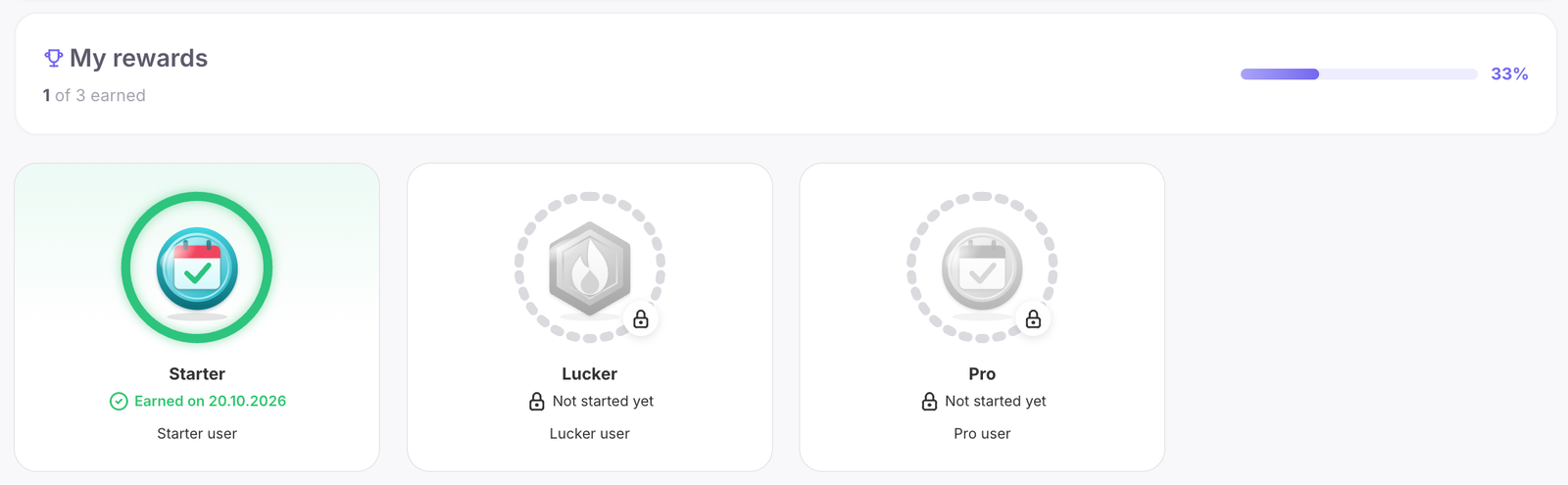
In the rewards ranking, badges appear below the leaders' names. Click any badge to find out how to earn it. On the Rewards page, students can see their collection, how many rewards they have earned and how much is left to earn each next reward.
My courses 📚
New enrollments appear first. A course the student has not yet opened carries a New badge. When they open it, the badge disappears, but the course stays in place. The order does not change.
The list keeps courses the student is enrolled in and courses the school does not sell. Paid courses without enrollment stay in the store.
Use the filter to see available, unavailable, completed or free courses. Locked courses have gray covers. They carry a Locked badge.
monobank and fiscal receipts 🧾
If your school issues fiscal receipts through a software cash register (PRRO), such as Checkbox, enable the new Send fiscalization data (cart) option in the monobank settings. It fixes an error that caused monobank to reject these payments when cart data was missing.
Selling courses in dollars or another currency? With the option enabled, the payment is billed in Ukrainian hryvnias at monobank's current exchange rate. The receipt total matches the payment amount. Refunds from the monobank dashboard no longer produce an error about mismatched item totals.
We also fixed an issue where a student's card was sometimes not saved for automatic subscription renewals after a monobank payment.

Smaller updates and fixes 🛠️
A new automation now opens straight in the editor, so you can start building the scenario as soon as you create it. When setting up a product, find courses and paths by searching instead of scrolling.
The course access email sent to a student who already has an account no longer says that an account has been created. This is fixed in all six languages where it occurred. After a failed automatic charge, a subscription no longer stays active without payment. It moves into retries on your schedule.
Only students count in certificate statistics. The team's test certificates are excluded, and locked courses now appear locked to students.
Softbook has also received many small fixes and improvements since the previous update.
Softbook with ChatGPT and Claude 🤖
If you missed the previous launch, Softbook AI Connector (MCP) is already available to connect your school to ChatGPT or Claude. From the chat, you can enroll students in courses or extend their access. The owner selects schools and authorizes changes. For bulk actions, the AI first shows a plan and asks for confirmation. Connecting requires an active paid Softbook subscription.
Learn and work from your phone 📱
The Softbook LMS mobile app is free to download on both iOS and Android. Students watch lessons, take tests and submit homework, including voice submissions. Teachers review work from their phones, while the school team can see students, their courses and access. Progress and data are shared with the web version.
Try it 🚀
Softbook 26.1 is live. Open the platform to see what has changed in your school.
Open the platform →Frequently asked questions
What happens to courses when I delete a folder?
The courses stay available and move to "No folder". Folders are shared across the team, but teachers only see their own courses inside. Nothing changes for students.
Which plan includes learning paths?
Learning paths are available on the Max plan.
Can I award a certificate for the whole path?
Yes. Choose a template in the path settings. The student will receive a certificate automatically after completing all required steps.
What happens if a subscription payment fails?
If retries are configured for the product, Softbook LMS will try to charge again on your chosen schedule: 3 attempts over 3 days, 4 over 7 days, 6 over 14 days or 8 over 30 days.
Will existing certificates keep working?
Yes. Existing certificates continue to work and are issued as before.
Does completing a course in the mobile app count toward a learning path?
Yes. Completing a course in the mobile app also moves the student forward on the path.