
Your school in Claude and ChatGPT
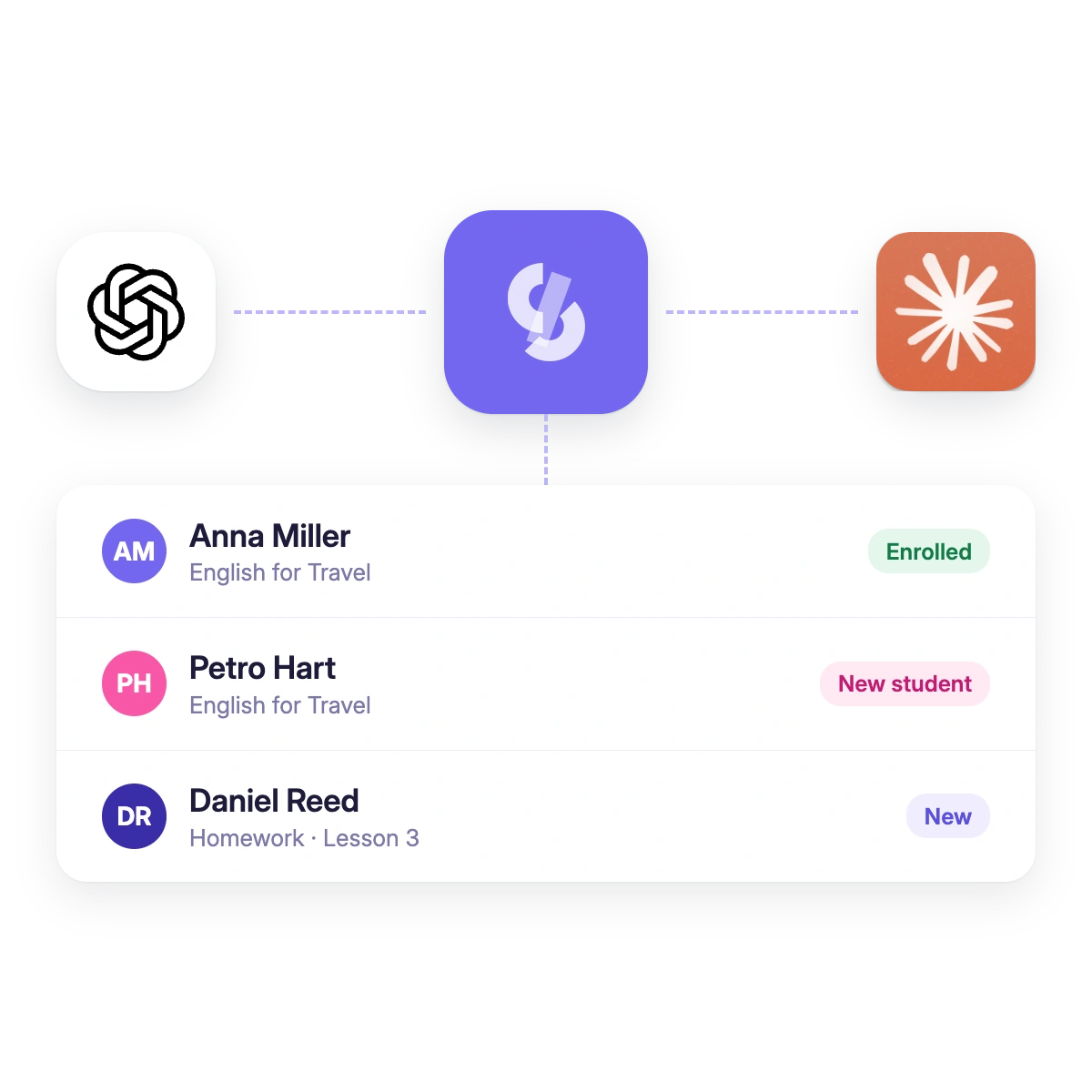
Softbook AI Connector links your school to the AI assistant you already use. You type a request, and it finds students, enrolls them in a course and extends their access.
Sees
What AI sees in your school
A question that used to take a trip through several sections now fits in one sentence. The assistant reads your school's data and answers with numbers and names.
- Courses and their structure: modules and lessons.
- Students: search by name or email, their courses, access and groups.
- Orders and sales for a period, top courses and products. It never adds up different currencies.
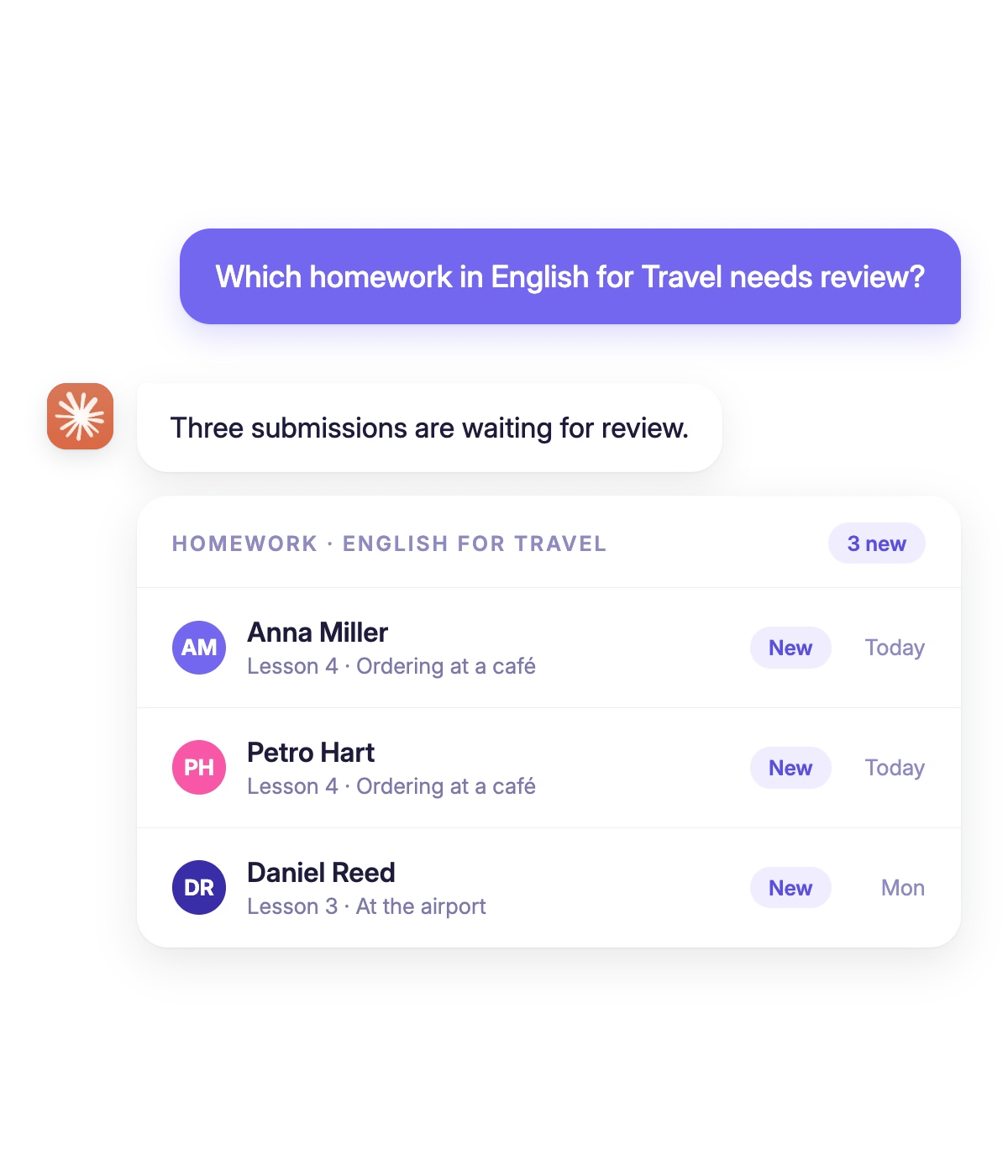
- Homework by status: new, accepted, rejected.
- Analytics, if your plan includes it: revenue, UTM sources, churn risk, LTV.
Acts
What AI does when you ask
If you allowed "Changes" when connecting, AI takes the routine off your hands. You describe the task. It carries it out in your school.
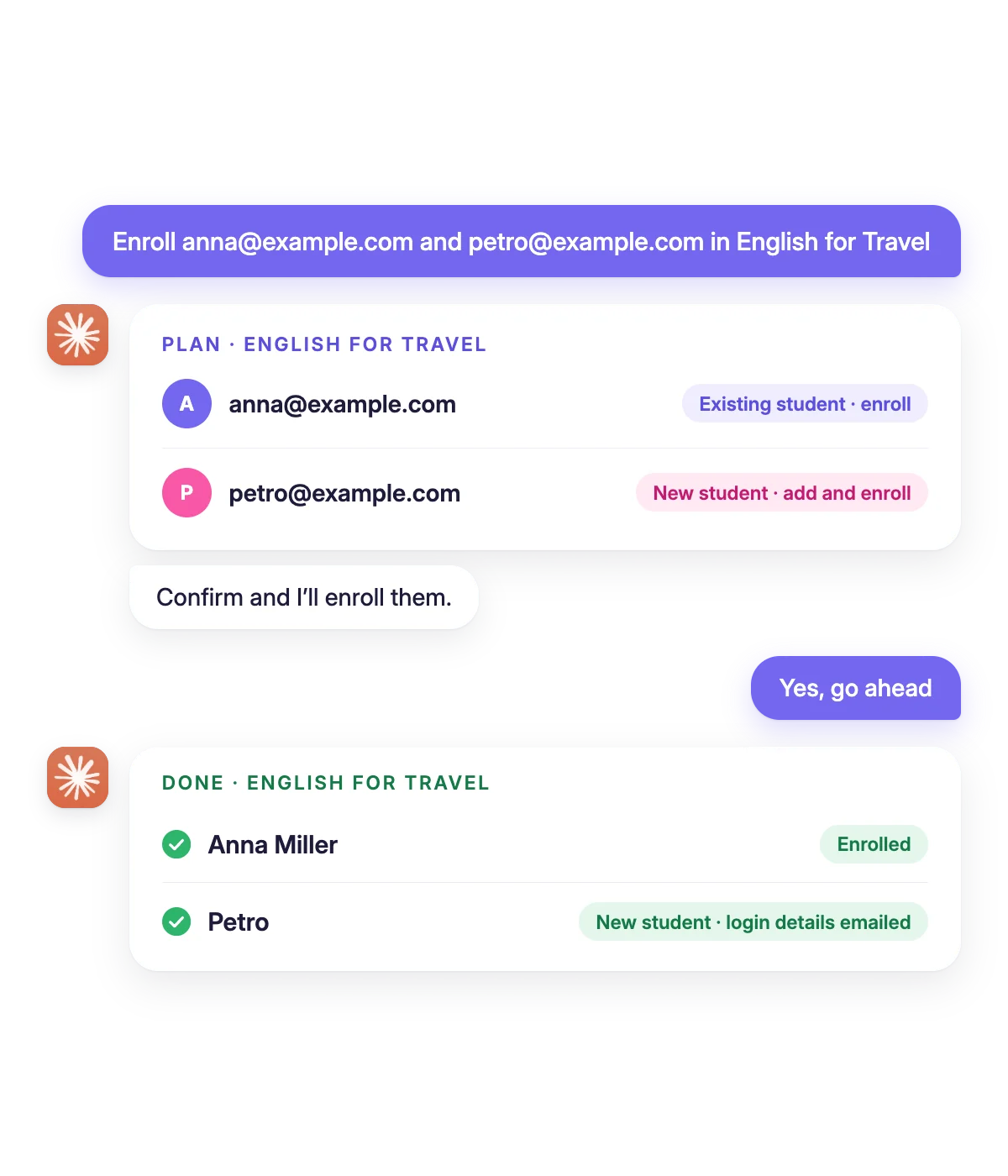
- Adds students by email and enrolls them in a course right away.
- Enrolls an existing student in a course or removes them from it.
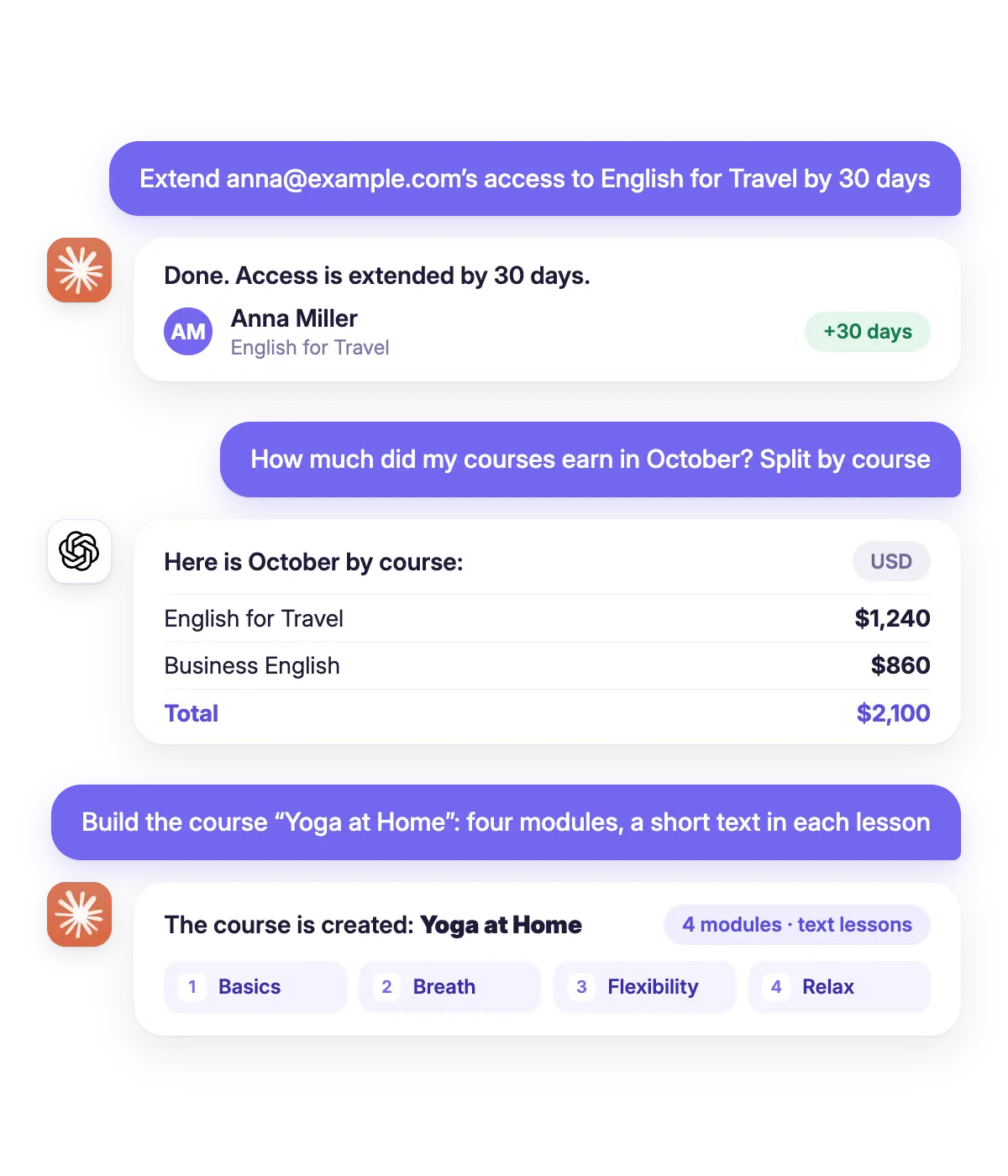
- Extends access, changes the start or end date, blocks and unblocks.
- Adds a student to a group or takes them out of it.
- Creates a course with modules and text lessons, adds lessons, replaces lesson text.
- Draws covers and avatars for courses and lessons as vector illustrations.
These changes are real, the same as clicking a button in Softbook. The student gets the school's usual email and your automations run. Don't want the email sent? Tell the assistant.
Prompts
Example requests
- "Enroll anna@example.com and mark@example.com in 'Spanish A1' and extend their access to June 30"
- "Show me new homework nobody has reviewed yet"
- "Build a course called 'Yoga at Home': four modules, a short text in every lesson"
Control
Under your control
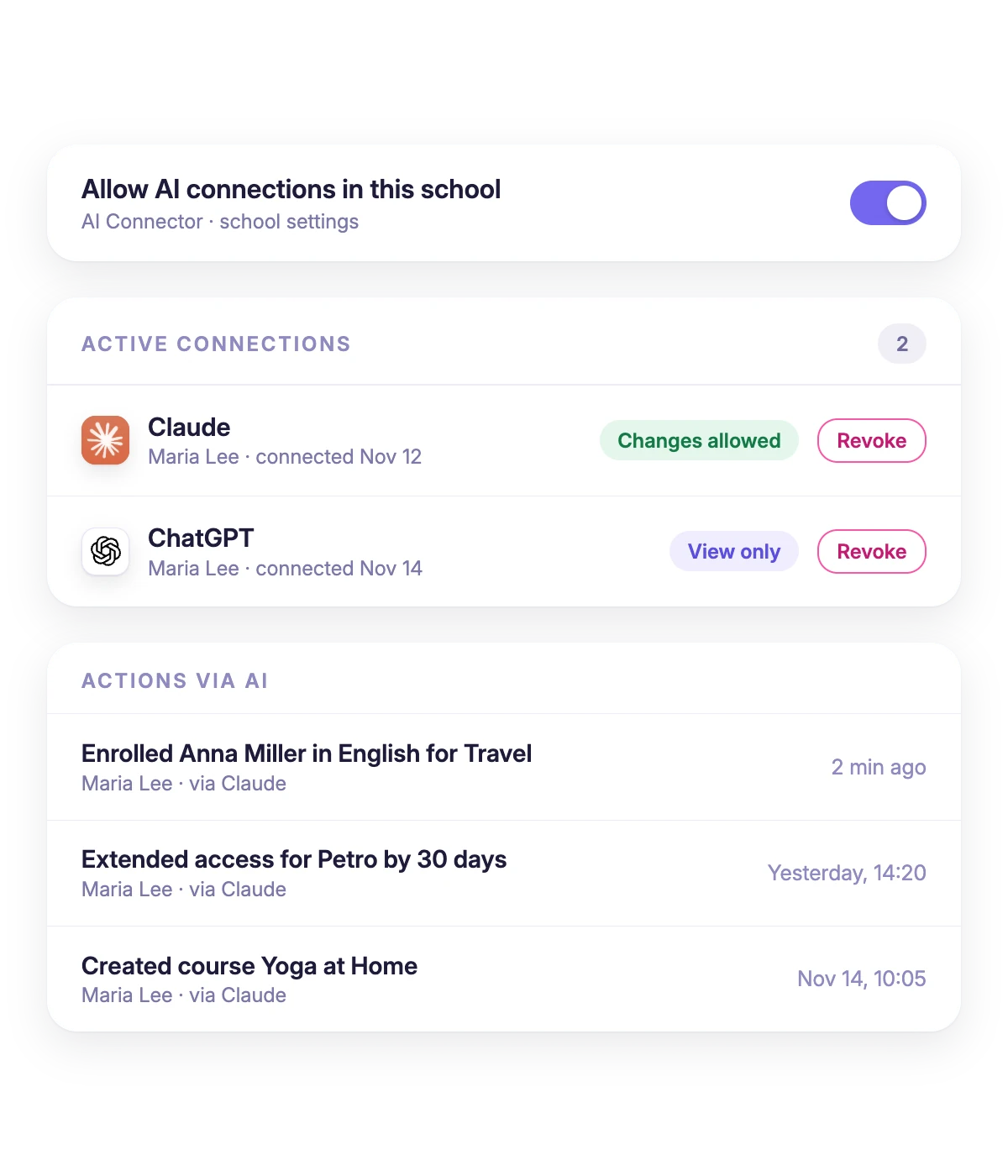
AI works within the limits you set. You see every step it takes, and one move cuts its access.
- The "Actions via AI" log: who made a change, through which app, and when.
- Before bulk changes, AI shows a plan and waits for your confirmation.
- "Revoke" stops a connection from the next request. A toggle turns AI off for the whole school.
- AI sees only the schools you picked. A team member acts within their own permissions.
How to connect
Turn on AI in your school
In school settings, turn on "Allow AI connections in this school". The toggle is off by default.

Add the connector
In Claude or ChatGPT, add a custom connector with the address from the guide. No coding needed.
Pick your schools
Sign in to your Softbook account, select the schools and decide whether AI may make changes.
Real schools. Real results. Real people.
Founders and creators on what works best for them in Softbook.

"We picked Softbook because we needed one platform for selling courses and managing students. What we value most: video uploads, clear pricing with no surprises, and support that actually listens and acts."
Mike Pritula
Mike Pritula Academy

"The team moved all my lessons over by hand — I have no idea how I would have done it myself. They were careful about it. They keep improving the platform, they listen to what you ask for, and they genuinely look after every client."
Tanya Mykhalchenko
PPC advertising school

"Before we switched, we tried selling video lessons through Instagram, but without an admin it was impossible. Here I uploaded the courses, set up automatic payments — and the system runs itself. The courses bring in steady income without me being involved every day."
Olga Miller
Director, recruiting school

"We built a big knowledge base for our students on Softbook. No more 'live' sessions with speakers — everything is recorded and laid out in modules with tests and assignments. Our instructional designers can finally breathe."
Alexey Dinar
Personal coach

"Your platform solved a problem I had been struggling with for a long time. I uploaded a few courses, set up automatic payments — and stopped worrying about the technical side. I can see the courses selling and bringing in income every month."
Alla
Massage therapist

"Softbook let us scale our cleaning school into new regions with no extra spend on technology."
Yevhen Sukharev
Founder, Kyiv School of Cleaning

"In two years with Softbook we have built a full agency with an education arm. The platform covers everything we need."
Myroslav Liaskovets
Founder, LeadMarketing
FAQ
Softbook MCP (AI Connector) connects your Softbook school to an AI assistant over the MCP protocol. Once connected, Claude, ChatGPT or another app sees your school's courses, students and orders. When you ask, it enrolls students, extends access and creates text courses.
It doesn't send emails, campaigns or Telegram messages. It doesn't issue refunds, change prices or delete courses and students. It edits text lessons only, never lessons with video, files or tests. It can't see passwords or payment details, and it can't reach schools you haven't given it access to.
Claude (claude.ai and Claude Desktop), ChatGPT, Claude Code, Cursor, n8n and other apps that support MCP. Whether you can add a custom connector in Claude depends on your Claude plan.
AI Connector comes with paid Softbook plans. It isn't part of the 30-day trial, so you connect your school once you've paid for a plan. Analytics requests work if your plan includes analytics. Plans are compared side by side on the pricing page.
No. AI can't see passwords or payment details, and it doesn't resend login details to students. It works only with the schools you selected when connecting. What the AI service does with your conversation is up to its own policy, Anthropic's or OpenAI's.
Before changes that affect several students, the assistant shows a plan and waits for you to confirm. If your school has courses with similar names, it asks which one you mean. Every action lands in the "Actions via AI" log, and the "Revoke" button stops the connection from the next request.
Yes, same as a manual enrollment. The student gets the school's system email, a new student without an account gets an email with a password, and your automations run. If you don't need the emails, ask the assistant not to send them.
Yes. They protect your school from accidental bulk operations. Per connection: 120 requests a minute and 3,000 an hour, 30 changes a minute. You can add and enroll up to 100 students a minute, and up to 50 emails in one request. For thousands of students, CSV import is the easier route.
The school owner. A team member needs the AI Connector permission: the view level is read-only, the manage level allows changes, and both stay within their usual permissions for each section. Students and teachers can't connect.
Connect your school to your AI assistant
Choose a paid plan, turn on AI Connector in settings and give the assistant its first task.